
One of the most common surprises in printing is how different a printed project can look compared to the digital file. On screen, your colors may feel bright, clean, and full of detail. But once printed, those same areas can come out darker, flatter, or slightly muddy.
One this you can do to help ensure your printed books stays true to your digital design is to pay attention to your ink saturation levels.
Understanding how ink behaves on paper (instead of a back-lit screen) will help you avoid problems and get much more predictable results.
Why Prints Look Different Than Your Screen
Digital screens use light (RGB) to display color, which allows them to show subtle differences even at very high intensity. Printing, on the other hand, uses ink (CMYK) to absorb and reflect light off the surface of the paper. As ink levels increase, less light reflects off the paper—so colors start to look darker and less detailed in print. This is why designs that look vibrant on screen can feel heavy, lose contrast, or look muddy once printed.
- Screens can show subtle differences even with extremely saturated colors.
- Paper can’t reflect light the same way, especially with heavy ink coverage.
What Is Ink Saturation?
Ink saturation refers to how much ink is applied to the paper. In full-color printing, this is measured across the four CMYK inks—Cyan, Magenta, Yellow, and Key (black).
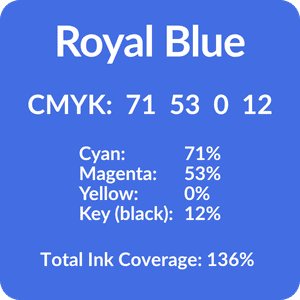
Each color can range from 0% to 100%. You’ll typically see a CMYK color represented with 4 numbers that indicate the percentage of each ink. For example Royal Blue uses 71% Cyan, 53% Magenta, 0% Yellow, and 12% Key (black).
Since each ink color can be applied at up to 100%, a single area can reach as high as 400% total ink coverage. For example, the Royal Blue color referenced above would have 136% total ink coverage. (71 + 53 + 0 + 12 = 136)
While increasing total ink coverage might sound like a great way to get richer colors, adding too much ink usually creates problems rather than improvements.
Avoid Oversaturated and Undersaturated Colors
Issues tend to show up at both ends of the saturation range. When ink levels are too low, important details can fade out. When they’re too high, colors start to lose clarity and depth.

Avoid Undersaturated Colors
Very low values (under ~10%) can be so light that they don’t reproduce well, causing fine lines or subtle details to disappear
For example a very light grey that only used 5% Key (CMYK 0 0 0 5) would likely not be visible at all. You can see the difference on a backlit computer screen but when printed it would just appear as white.

Avoid Single Colors Approaching 100%
Very high values for a single CYMK color (over ~90%) often lose visible differences, printing as flat, solid tones.
At the opposite end of the scale single colors that are above 90% will likely just look like they are printed as a solid color (100%) for example printing 0 0 0 90 will just look like 0 0 0 100 (solid black).
Avoid Total Ink Coverage Above ~300%
Total ink coverage above ~300% can lead to muddy, overly dense colors because the paper can’t handle that much ink cleanly
On your backlit computer monitor, heavily saturated colors—like 300% total ink coverage—can still appear rich and full of detail. But in print, the result is very different.
As you approach that level of ink saturation, colors tend to become muddy and lose their character. This happens because heavy ink coverage reduces the amount of light that can reflect off the paper, which is what gives printed colors their depth and vibrancy.
Screens don’t have this limitation since they produce their own light, so the same colors can look much more dynamic digitally than they do in print.
Ideal Ink Coverage is Between 150% – 250%
For most projects, the goal is to stay in a balanced range where color still feels rich but holds onto detail. In general, a total ink coverage between 150% and 250% produces the most reliable results. This range gives you strong color without overwhelming the paper or sacrificing contrast.
Ink Saturation Tips
A lot of saturation issues start during the design process. Files created in RGB often convert into heavier CMYK values than expected, especially with deep or highly saturated colors. Without careful adjustment, this can push ink levels higher than they should be. Similarly, trying to create extra-deep blacks by stacking multiple ink values can lead to prints that look heavier instead of sharper. Subtle gradients can also be tricky, particularly when they rely on very light or very dark transitions that don’t translate well to print.
The best way to avoid these issues is to design with print in mind from the beginning.
- When creating your artwork make sure your working in CMYK rather than RGB.
- Keep your values within a safe range and mindful of total ink coverage.
- If you created your illustrations in RGB then double-checking color conversions before sending your files to PufferPrint.
- Review your digital proof carefully for any unexpected color shifts.
While screens are helpful for previewing a design, they can only tell you so much. A physical proof is still the most reliable way to see how your file will actually print.
Get a Free Quote
Select your print option or schedule a 15-minute consult to get a FREE quote for your next project. We’ll work with our print team to give you an unbeatable price quote for a beautiful, bookstore-quality finished product.
Why Print with PufferPrint?
Read Our Reviews
See what other authors are saying about working with PufferPrint.

I worked with PufferPrint to publish my children’s board book and they did a fantastic job. I was really appreciative of their communicativeness and professionalism. I felt like they were truly working WITH me, and were invested in making my book as high of a quality as I wanted it to be. Will be recommending them and hopefully working with them again in the future!
Jes McCutchen
Lil’ Space Explorer
PufferPrint is the absolute best for self publishing. The Adventures of Yaya staff is very happy with the decision we made with going through this company. Customer service is second to none and the quality of our children’s book is beyond what we expected. We are looking forward to a long lasting relationship with Pufferprint because they are simply THE BEST!!
Yaya Dayiti
The Adventures of Yaya
PufferPrint guided me through the book printing process and addressed all of my questions promptly. The book looks amazing. I highly recommend PufferPrint!
Janet Beaulieu
Be Brave Little Pirate
I’m so glad I found PufferPrint and I would highly recommend their services. It was a joy to work with such dedicated, prompt and talented customer service. Such meticulous attention to detail, I’m completely satisfied with my book, and PufferPrint. Don’t hesitate, you won’t be disappointed – thanks PufferPrint!
Denise Mathus
Big Potato and Small Fry